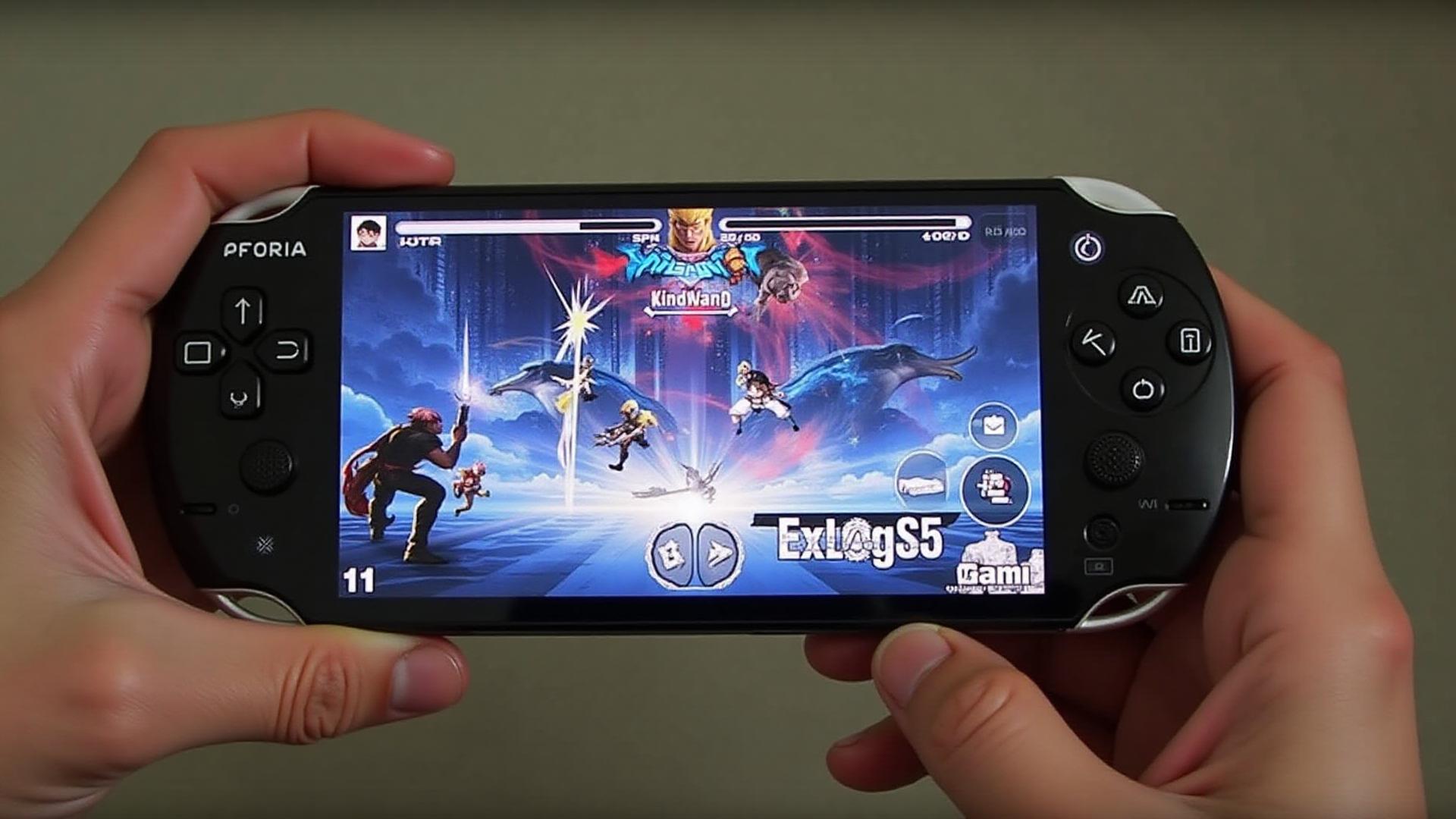
7 Best PPSSPP Settings for Android to Boost Gaming Performance

PPSSPP, the popular PSP emulator, has revolutionized the way gamers experience classic PlayStation Portable titles on their Android devices. While the app is known for its versatility and compatibility, achieving the best gaming experience requires fine-tuning the settings. In this guide, I’ll walk you through the Best PPSSPP Settings for Android to ensure smooth gameplay, enhanced graphics, and minimal lag. Whether you’re a seasoned gamer or a newcomer, these tweaks will elevate your experience.
1. Choosing the Right PPSSPP Version
Best PPSSPP Settings for Android. Before diving into the settings, it’s crucial to ensure you’re using the latest version of the PPSSPP emulator. The newer versions often come with better performance optimizations, bug fixes, and additional features.
- Tip: Always download the official PPSSPP Gold APK from trusted sources to avoid security risks and ensure you have the most up-to-date version.
2. Graphics Settings for Maximum Performance
Best PPSSPP Settings for Android to make the most out of your Android device’s hardware, you’ll need to tweak the graphics settings carefully. Too high a setting can result in lag, while too low a setting might degrade the visual experience. Here’s how to find the perfect balance.
A. Rendering Resolution
- Settings: Go to Graphics > Render Resolution.
- Best Option: Set it to 1x PSP resolution for performance or 2x for sharper graphics on higher-end devices.
- Why: Higher resolutions give you better graphics but can significantly impact performance on mid-range devices.
B. Frame Skipping
- Settings: Graphics > Frame Skipping.
- Best Option: Set to Auto or 1 if you’re looking for a smoother experience. If the game stutters, try adjusting this to 2 or higher.
- Why: This helps maintain a consistent FPS, especially in graphically demanding games.
C. Texture Filtering
- Settings: Graphics > Texture Filtering.
- Best Option: Use Linear or Anisotropic 16x for better visual clarity, but this can cause performance hits on lower-end devices.
- Why: These settings improve the sharpness and clarity of textures.
D. OpenGL or Vulkan Backend
- Settings: Graphics > Backend.
- Best Option: If your device supports Vulkan, select it for better performance. Otherwise, stick to OpenGL.
- Why: Vulkan offers faster rendering and better resource management, improving the overall gaming experience on supported devices.
3. System Settings for Smooth Gameplay
Next, let’s optimize the system settings to reduce lag and crashes, ensuring your gameplay is as smooth as possible.

A. Skip BIOS
- Settings: System > Skip BIOS.
- Best Option: Enable it.
- Why: This skips the PlayStation BIOS, reducing loading times and speeding up the emulator.
B. Multithreading
- Settings: System > Multithreading.
- Best Option: Enable this setting if your device has multiple cores.
- Why: It allows PPSSPP to make full use of your processor, leading to better performance, especially in demanding games.
C. Fast Memory
- Settings: System > Fast Memory.
- Best Option: Enable it.
- Why: This setting helps improve performance by using faster memory access methods, speeding up games without major side effects.
4. Audio Settings to Avoid Lag
Audio lag can disrupt the gaming experience, so it’s important to fine-tune the audio settings for smooth gameplay.
A. Audio Latency
- Settings: Audio > Audio Latency.
- Best Option: Set this to Low or Medium.
- Why: Low latency minimizes audio lag, but setting it too low can cause stuttering in gameplay. Finding the right balance is key.
B. Enable Sound Effects
- Settings: Audio > Enable Sound Effects.
- Best Option: Enable it for a richer gaming experience, but be mindful if you’re playing on lower-end devices, as it can add to the system load.
- Why: Sound effects enhance immersion, but on low-spec devices, disabling this feature can free up system resources.
5. Save and Load States for Seamless Gameplay
While PPSSPP allows you to save your game progress at any point, it’s crucial to optimize this feature to ensure smooth usage.
A. Auto Save States
- Settings: System > Auto Save States.
- Best Option: Enable this feature to automatically save your progress at regular intervals.
- Why: This prevents you from losing your progress due to crashes or interruptions.
B. Manual Save/Load States

- Settings: System > Manual Save States.
- Best Option: Use this feature to manually save and load at crucial points in the game.
- Why: This is especially useful for difficult sections of a game where you want to retry without losing progress.
6. Controller and Touch Controls Configuration
For a more comfortable gaming experience, configuring your controller or touch controls properly is a must.
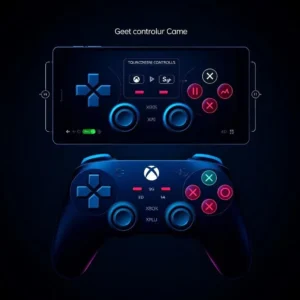
A. Customizing the Touchscreen Controls
- Settings: Controls > Touchscreen Controls.
- Best Option: Customize the on-screen buttons according to your preference for better comfort and ease of access.
- Why: Personalized controls will help you play more efficiently and comfortably.
B. Gamepad Setup
- Settings: Controls > Gamepad.
- Best Option: If you’re using a physical controller, ensure it’s mapped correctly. PPSSPP supports various gamepads like Xbox and PlayStation controllers.
- Why: A gamepad provides a more traditional and comfortable gaming experience.
7. PPSSPP Gold Exclusive Settings
If you’re using PPSSPP Gold, there are additional settings you can take advantage of for an even better experience.
A. Enhanced Shader Effects
- Settings: Graphics > Shaders.
- Best Option: Use the xBRZ or HQ2x shader for enhanced graphics without compromising performance.
- Why: These shaders improve the visual quality, making games appear much sharper and more detailed.
B. Custom Textures
- Settings: Graphics > Custom Textures.
- Best Option: Enable custom textures for specific games, which can drastically improve the game’s visual fidelity.
- Why: High-quality textures make a significant difference, especially in visually demanding games.
Conclusion:
By optimizing the PPSSPP settings for your Android device, you can ensure an enhanced gaming experience, free of lag, stutter, or crashes. Whether you’re a casual gamer or a hardcore fan of PSP titles, these settings will help you get the best performance out of PPSSPP Gold. Be sure to tweak the settings according to your device’s specifications for optimal gameplay. With the right configuration, you’ll enjoy smoother, more immersive gaming, no matter what PSP game you’re playing.